v0.4.8
Clear task and deck progress, reversible card hiding, responsive progress loading, and a practical How it works guide.
by International Courses · An Anki add-on for spaced repetition, study notes and progress tracking
Progress reports for International Courses teachers. Access must be granted.
Flashcard System brings spaced repetition, personal notes and progress tracking together in Anki. Fast, Normal and Long-term study modes match different goals; optional reports let you share progress with your teacher. This is a test release. Planned developments include gamification, AI-assisted flashcard creation, and iOS, Android and web versions.
Choose a deck, recall the answer, then reveal it. Select Yes if you remembered correctly, or No if you need another try. Be honest: a No helps the system give you the practice you need. Play any included audio, and use Notes for your own reminders.
Anki schedules each card using your answers and the deck settings, including FSRS when enabled. Difficult cards return sooner; successful recalls generally lead to longer gaps. Flashcard System makes this easier to follow without replacing that scheduling algorithm. A session can show the same card more than once.
Total is your active learning scope: every non-hidden card, including completed cards and subdecks. Due is the number currently available under Anki’s limits: new cards, learning steps and reviews. Learning steps may be available slightly early under your settings. Each card counts once, even if it returns during the session. Cards waiting beyond that window appear as “more available later today”. The counts can change as you answer or time passes.
Select the study mode beside the deck list. Fast suits an urgent deadline, Normal a course you want to finish, and Long-term knowledge you want to keep. The mode applies to all decks in the collection. Switching changes the target but does not erase learning history.
Fast and Normal have finite targets; a later No begins a new streak. Long-term instead marks cards Established and continues Anki’s reviews. Its Deck Readiness rises with successful spaced recall and gradually falls as reviews approach or become overdue. This is useful feedback, not lost effort.
Know a card well enough, or find its content irrelevant? Open ⋯ → Hide card. It stays out of study until you restore it; its history is kept, and other cards from the same note stay active. Undo the action immediately, or open Tools → Hidden cards, select cards and choose Cards → Restore selected cards. Hidden cards leave both Total and Complete. Hiding an unfinished card can raise the percentage by reducing the scope, but never counts as an achievement. Temporarily buried cards remain in Total. An empty active deck shows “No active cards”, not 100%.
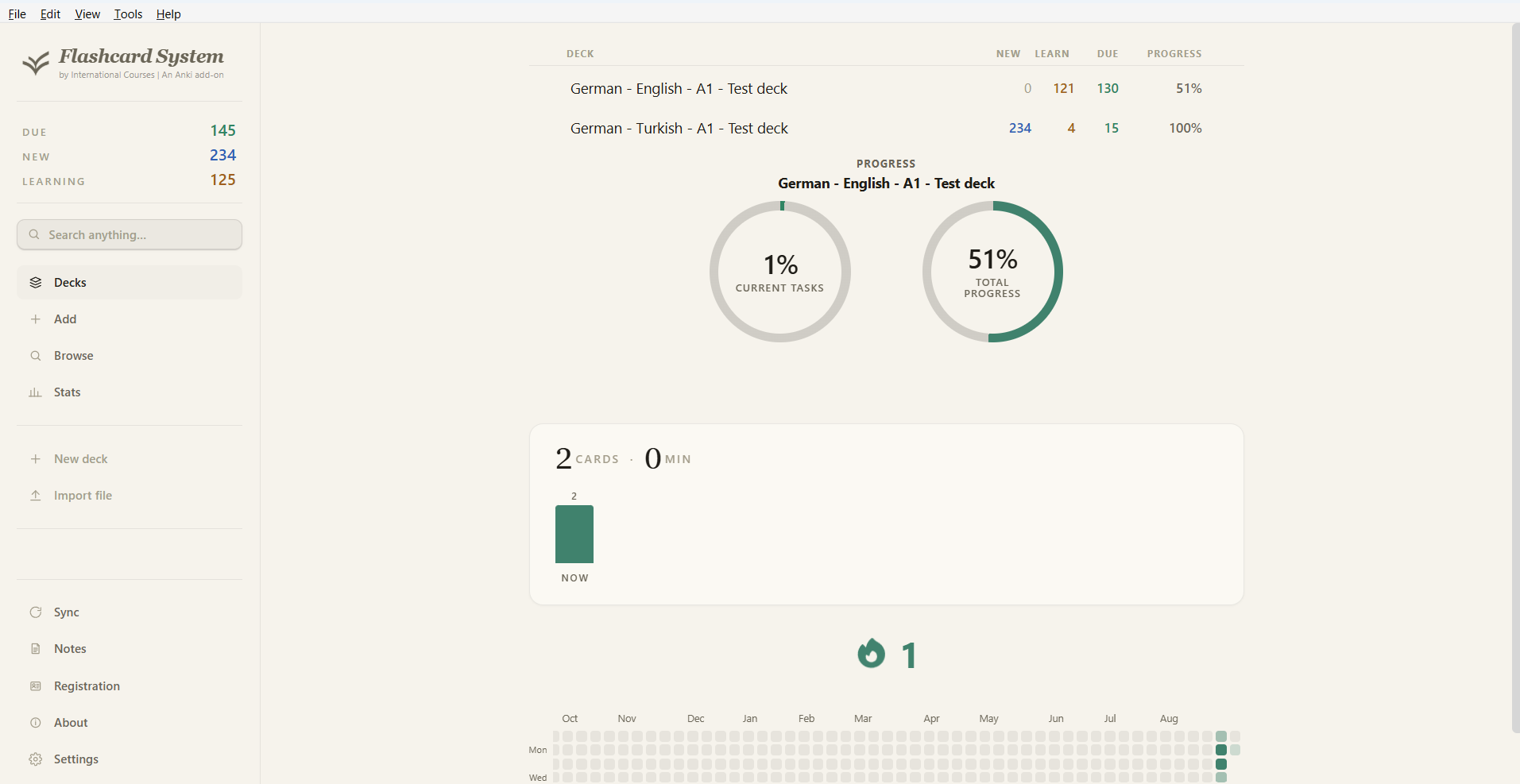
Current Tasks shows how much of the current study day’s workload you have finished. It counts distinct cards finished for today, divided by those finished plus the cards currently Due and those waiting until later today. Cards still scheduled to return today are not finished yet. A card answered several times counts once. Daily limits and new answers can change the workload; the activity heatmap separately records your practice, including repeated answers.
Continuous practice marks a card ready after three correct answers in a row, even on the same day. Example: revise 120 history questions tonight for tomorrow’s test. Fast keeps its own practice record and does not change Anki’s future review dates.
A card is Complete after five correct scheduled answers in a row, on at least three study days and spanning at least one week. Example: learn one training module steadily over the next two weeks. Anki still schedules the reviews.
A card becomes Established after seven correct scheduled answers in a row spanning at least 30 days, but reviews continue. Example: keep a language vocabulary deck useful throughout the year. Deck Readiness changes as cards approach or pass their next review.
 View full screenshot (opens in a new tab)
 View full screenshot (opens in a new tab)
See your decks, current study tasks and longer-term progress together, with a record of your study activity.
 View full screenshot (opens in a new tab)
 View full screenshot (opens in a new tab)
This German–English A1 card pairs pronunciation audio with a translation and example sentences. A simple YES/NO choice keeps each review focused.
Clear task and deck progress, reversible card hiding, responsive progress loading, and a practical How it works guide.
Teacher reports distinguish installed decks from archived history.
Progress percentages for every deck, with faster calculation across larger collections.
Faster access to settings, with fewer loading delays.
More responsive windows through streamlined icon handling.
A distinctive Flashcard System logo, light/dark branding and a Windows shortcut.
Notes: a local workspace with tabs, formatted text, links, images and editable tables.
Progress circles, live study feedback and a simplified YES/NO review flow. An English, German and Turkish interface, with optional teacher reporting.
The app is a modified fork of anki.design by Noah Lloyd Robson, used under the MIT License. The MIT notice is included with the download. Flashcard System is independent of Ankitects; Anki® is a registered trademark of Ankitects Pty Ltd.
Questions about Flashcard System, courses or support? Email us:
No decks match your search. Try a different term, subject or level.